

In the previous article, we laid the foundations of MCP and MCP Apps: MCP connects agents with external tools, and MCP Apps lifts their results from plain text to the level of interactive user interfaces. Using a minimal, VanillaJS-based demo, we saw how a host loads an app into a secured iframe and communicates with it via the postMessage API – abstracted by the App object and the AppBridge. From establishing the connection, through the exchange of tool parameters, results, and host context, all the way to the orderly teardown, we walked through the entire lifecycle.
We now apply this foundation to a complete case study. This time, a real MCP server, a language model, the agent framework Mastra, and the AG-UI protocol come into play. The goal is to connect a business partner's MCP server to our flight portal and present its results with the help of an MCP App.
📂 Source code (branch: copilotkit)
The readme shows how to start the example including the backend and the MCP server.
Integrating an MCP Server with MCP Apps
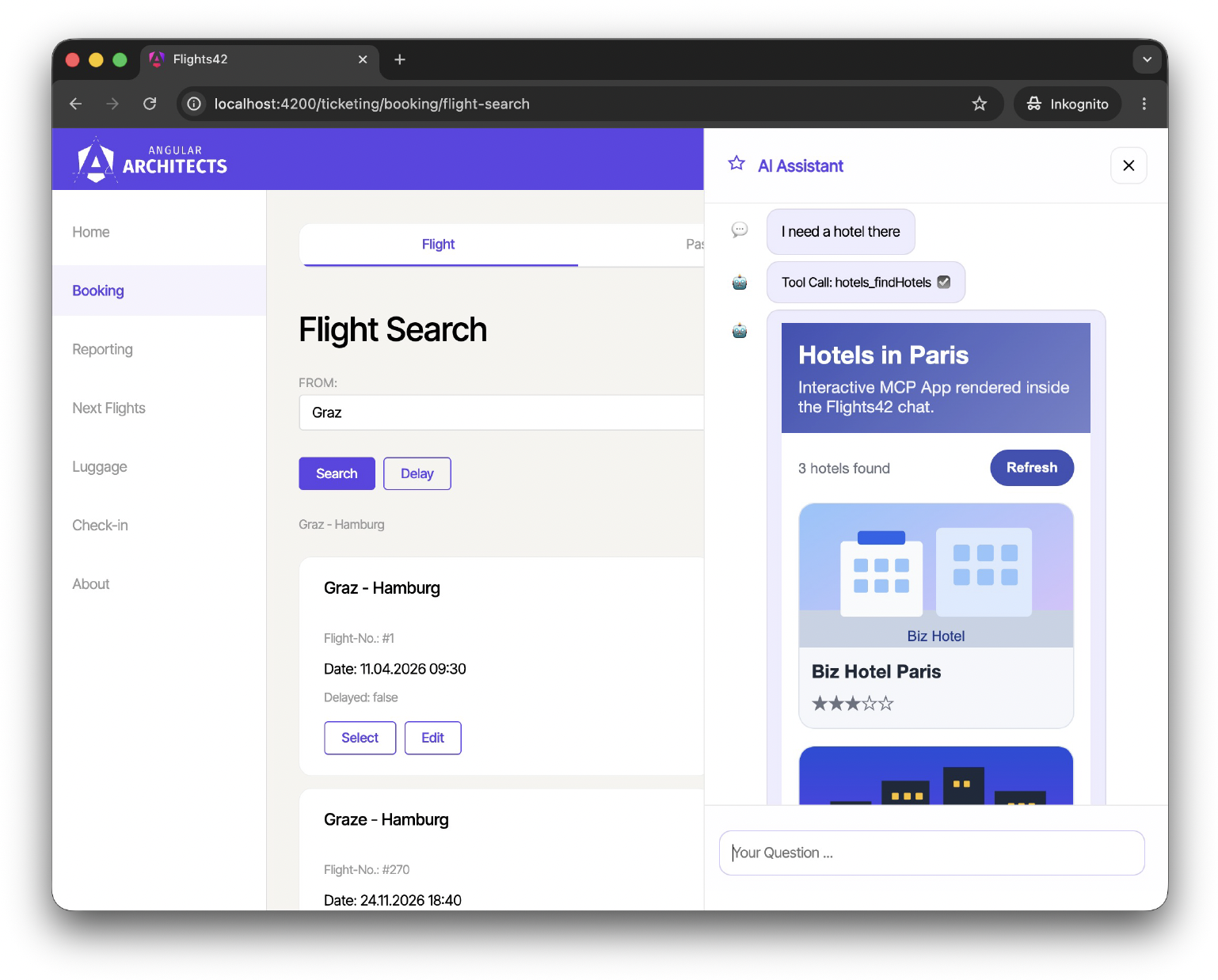
Having clarified the basic mechanics of MCP Apps with the first example, we now want to apply our knowledge to a larger case study with a language model and an MCP server. The idea is to connect the MCP server of a business partner specialized in hotel bookings to our flight portal. This way, our customers can inquire not only about flights but also about hotels in the destination city:
Providing an MCP Server
The implementation of the MCP server isn't the focus of this article. For better understanding, however, I still want to take a brief look at our Node.js implementation. When using other server frameworks, the approach is very similar.
An object of type McpServer from the MCP SDK represents the server itself:
import { McpServer } from '@modelcontextprotocol/sdk/server/mcp.js';

[...]

const server = new McpServer({
  name: 'Flights42 Hotels MCP Server',
  version: '1.0.0',
});
The name and the version are merely metadata. Consumers can use them to avoid possible version conflicts.
With the function registerAppTool from the MCP Apps SDK, we register a tool with the McpServer:
import {
  registerAppTool,
} from '@modelcontextprotocol/ext-apps/server';

[...]

export const HOTELS_RESOURCE_URI = 'ui://hotels/results.html';

registerAppTool(
  server,
  'findHotels',
  {
    title: 'Find Hotels',
    description:
      'Find three demo hotels for a city. Use this when the user asks for hotels in a specific city.',
    inputSchema: findHotelsInputSchema,
    outputSchema: findHotelsResultSchema,
    _meta: {
      ui: {
        resourceUri: HOTELS_RESOURCE_URI,
      },
    },
  },
  async (input) => {
    const result = findHotels(findHotelsInputSchema.parse(input));
    const hotels = result.hotels;
    return {
      content: [{ type: 'text', text: `${hotels.length} hotels found` }],
      structuredContent: result,
    };
  },
);
As usual, an id, a name, a description, and schemas for parameters and return value define the tool. The schema description here, too, is done as usual via Zod:
export const findHotelsInputSchema = z.object({
  city: z.string().trim().min(1).describe('The city to search hotels for.'),
});

export const findHotelsResultSchema = z.object({
  city: z.string(),
  hotels: z.array(hotelSchema),
});
In addition, registerAppTool also takes the implementation of the tool. This receives an object of type findHotelsInputSchema, searches for hotels, and returns a result with a structuredContent of type findHotelsResultSchema. Additionally, the return value contains a piece of textual information.
The decisive point for MCP Apps, however, is the registration of a resourceUri in the tool's metadata. This URI points to an MCP resource that delivers the app's HTML file. The server registers this resource with the function registerAppResource:
import {
  registerAppResource,
  RESOURCE_MIME_TYPE
} from '@modelcontextprotocol/ext-apps/server';

[...]

const htmlPath = resolve(distDir, 'index.html');

registerAppResource(
  server,
  'Flights42 Hotel Results',
  HOTELS_RESOURCE_URI,
  {
    description: 'Hotel results rendered as an interactive MCP App.',
  },
  async () => {
    const html = await readFile(htmlPath, 'utf8');

    return {
      contents: [
        {
          uri: HOTELS_RESOURCE_URI,
          mimeType: RESOURCE_MIME_TYPE,
            // text/html;profile=mcp-app
          text: html,
          [...]
        },
      ],
    };
  },
);
In addition, we make the McpServer accessible via HTTP through an Express server. The complete source code of the server can be found in the article's repository (mcp-server/src/server.ts).
Direct Access with the MCP Inspector
The MCP Inspector application allows us to interact directly with an MCP server. This includes retrieving metadata about tools, retrieving resources, and executing tools:
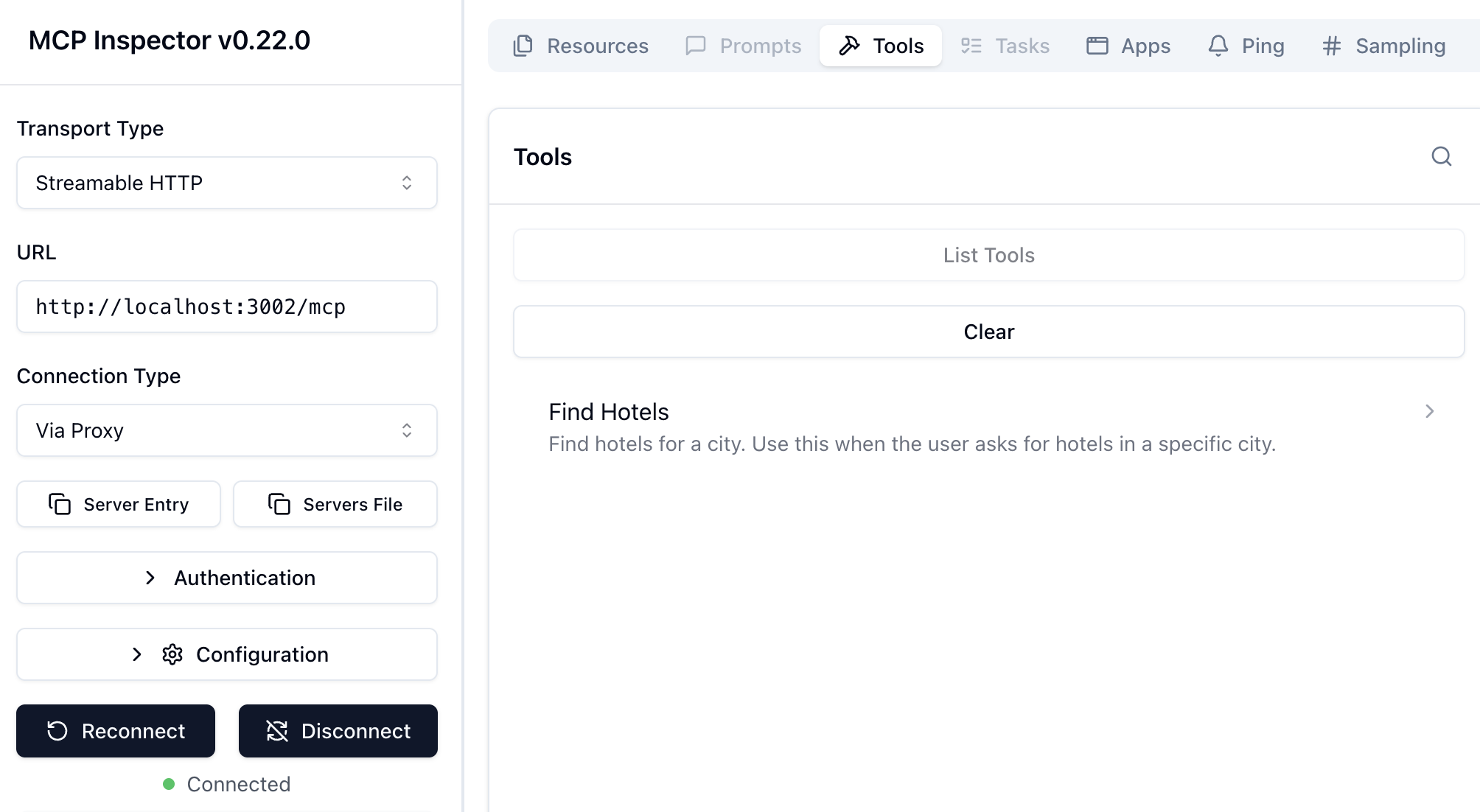
The inspector can be started without prior installation using the command npx @modelcontextprotocol/inspector. Afterwards, you enter the address of the MCP server and connect.
With our MCP server, you find the app's resourceUri in the metadata of the find-hotels tool. If you then retrieve the associated resource, you arrive at its HTML.
Integrating MCP Apps into the Backend
For an agent to pick up the tools of an MCP server, that server must be registered with it. With most agent frameworks, specifying the address of the MCP server is enough for this.
The agent framework Mastra that we use, for example, offers an MCPClient object with which you can retrieve metadata about all offered tools of an MCP server. These tools can be registered with the agent just like local tools:
import { MCPClient } from '@mastra/mcp';
[...]

const hotelsMcpTools = await new MCPClient({
      id: 'hotels-mcp-client',
      servers: { hotels: { url: new URL('http://127.0.0.1:3002/mcp') } },
    }).listTools();

export const ticketingAgent = new Agent({
  id: 'ticketingAgent',
  tools: {
    [...],
    ...hotelsMcpTools,
  },
});
MCP Apps via AG-UI
To point the client to an existing MCP App via AG-UI, the server sends a message of type ACTIVITY_SNAPSHOT:
{
  "type": "ACTIVITY_SNAPSHOT",
  "messageId": "0145bd3d-fb17-4d72-907a-9b2a1d9fad63",
  "activityType": "mcp-apps",
  "content": {
    "serverHash": "",
    "serverId": "hotels",
    "resourceUri": "ui://hotels/results.html",
    "toolInput": {
      "city": "Paris"
    },
    "result": {
      "content": [
        {
          "type": "text",
          "text": "{ \"city\": \"Paris\", \"hotels\": [...] }"
        }
      ],
      "structuredContent": {
        "city": "Paris",
        "hotels": [
          {
            "id": "grand-palace",
            "name": "Grand Palace Paris",
            "sterne": 5,
            "imageUrl": "http://127.0.0.1:3002/assets/hotels/grand-palace.svg"
          },
          {
            "id": "skyline-suites",
            "name": "Skyline Suites Paris",
            "sterne": 4,
            "imageUrl": "http://127.0.0.1:3002/assets/hotels/skyline-suites.svg"
          },
          {
            "id": "biz-hotel",
            "name": "Biz Hotel Paris",
            "sterne": 3,
            "imageUrl": "http://127.0.0.1:3002/assets/hotels/biz-hotel.svg"
          }
        ]
      }
    }
  }
}
The important thing here is the activityType. Because of the value mcp-apps, the client recognizes that this is information for an MCP App. In this case, the content node contains the reference to the resource, the parameters sent to the tool, and the result.
Hint: The ExtendedMastraAgent (libs/ag-ui-server/extended-mastra-agent.ts) used in our demo application contains a bit of logic that, after a tool call, sends such an activity snapshot, provided an MCP App is linked to the respective tool.
Agentic UI with Angular
If you don't just want to use MCP Apps, AG-UI, and agents in isolation but combine them into a solid architecture:
In my book Agentic UI with Angular, I cover the underlying patterns and trade-offs in depth.
CopilotKit's MCP Apps Renderer
To display the received activity snapshot in the client, we need an activity renderer. CopilotKit ships such a renderer for MCP Apps. It lives in the secondary entry point @copilotkit/angular/mcp-apps and is set up in app.config.ts with the function provideMCPApps:
// src/app/app.config.ts

import { provideCopilotKit } from '@copilotkit/angular';
import { provideMCPApps } from '@copilotkit/angular/mcp-apps';

import { mcpAppsConfig } from './mcp-apps.config';

[...]

export const appConfig: ApplicationConfig = {
  providers: [
    [...],

    provideCopilotKit({
      [...]
    }),

    provideMCPApps(mcpAppsConfig),

    [...]
  ],
};
Configuring the Host Information
The configuration passed to provideMCPApps is typed with MCPAppsConfig. Above all, it defines the hostInfo and the hostContext – the key parameters that we discussed in the first part in the context of the first demo application:
// src/app/mcp-apps.config.ts

import type { MCPAppsConfig } from '@copilotkit/angular/mcp-apps';

export const mcpAppsConfig: MCPAppsConfig = {
  hostInfo: { name: 'Flights42 MCP Host', version: '1.0.0' },
  hostContext: {
    displayMode: 'inline',
    theme: 'light',
    styles: {
      variables: {
        '--color-ring-primary': '#3f51b5',
      },
    },
  },
};
The Proxy in the Backend
This leaves the question of how the requests originating from the widget reach the MCP server. In principle, this could happen directly from the browser – provided the MCP server sets the appropriate CORS headers. CopilotKit, however, assumes a proxy in the backend: the requests travel over the AG-UI endpoint that is already in place; the MCP server's address and any credentials thus remain a backend detail. This proxy task is handled by the MCPAppsMiddleware from the package @ag-ui/mcp-apps-middleware. For this, our AG-UI route (ag-ui-route.ts) declares the hotels MCP server's configuration exactly once:
// ai-server/src/mastra/routes/ag-ui-route.ts

import {
  MCPAppsMiddleware,
  type MCPClientConfig,
} from '@ag-ui/mcp-apps-middleware';

[...]

const HOTELS_MCP_SERVER: MCPClientConfig = {
  type: 'http',
  url: 'http://127.0.0.1:3002/mcp',
  serverId: 'hotels',
};

const mcpAppsProxy = new MCPAppsMiddleware({
  mcpServers: [HOTELS_MCP_SERVER],
});
The server-side route handler then checks whether the incoming run carries a widget request. If so, the run goes through the middleware – without an agent and thus without a language model. All other runs go to the agent as before:
const agent = getExtendedLocalAgent({
  [...]
});

const middleware = isProxiedMcpRequest(parsed.input.forwardedProps)
  ? mcpAppsProxy
  : undefined;

[...]

await streamAgentEvents(sse, agent, parsed.input, { middleware });
For this, the function streamAgentEvents accepts an optional middleware parameter and then subscribes to middleware.run(input, agent) instead of agent.run(input).
Important for the overall picture: the MCP server's tools remain registered at agent level – as shown above – and continue to be executed on the server during the run. In this setup, the middleware serves solely as a proxy for the resources/read and tools/call requests initiated by the widget.
Rendering Activities
Since we use CopilotKit in headless mode, we have to take care of rendering the activities ourselves. When iterating over the messages of the chat history, we therefore check whether an activity is present for the current message. If so, we display it with the helper component app-copilot-activity.
<!--
  src/app/domains/shared/ui-assistant/chat-messages/chat-messages.html
-->

[...]
@for (view of views(); track view.id) {

  [...]

  @if (view.activity) {
    @let activity = view.activity;
    <article class="msg {{ view.variant }}">
      <div class="avatar">{{ view.avatar }}</div>
      <div>
        <div class="bubble" [class.bubble--a2ui]="activity.isSurface">
          <app-copilot-activity
            [message]="activity.message"
            [agentId]="agentId()" />
        </div>
        <div class="meta"></div>
      </div>
    </article>
  }

  [...]

}

[...]
When this text was written, there was no ready-made component for headless mode for visualizing activities yet. That's why app-copilot-activity, as the app- prefix reveals, is a self-written component.
It takes the current message as well as the agentId and derives the view to display from them in a computed:
// src/app/domains/shared/util-copilotkit/activity/copilot-activity.ts

[...]

@Component({
  selector: 'app-copilot-activity',
  imports: [NgComponentOutlet],
  template: `
    @let view = rendered();
    @if (view) {
      <ng-container *ngComponentOutlet="view.component; inputs: view.inputs" />
    }
  `,
  [...]
})
export class CopilotActivity {
  private readonly copilotKit = inject(CopilotKit);

  readonly message = input.required<ActivityMessage>();
  readonly agentId = input.required<string>();

  protected readonly rendered = computed(() =>
    toRenderActivity(
      this.message(),
      this.copilotKit.activityMessageRenderConfigs(),
      this.agentId(),
      this.copilotKit.getAgent(this.agentId()),
    ),
  );
}
The list activityMessageRenderConfigs() includes not only the configurations registered by the application but also the shipped renderers – among them the MCP Apps renderer set up via provideMCPApps. It fetches the app's HTML through the proxy discussed earlier and routes the widget's further requests there as well. The serverId from the activity snapshot indicates which of the MCP servers configured at the proxy is meant – only the backend knows the server's URL.
The actual selection of the renderer is handled by the function toRenderActivity:
export function toRenderActivity(
  message: ActivityMessage,
  configs: readonly RenderActivityMessageConfig[],
  agentId: string,
  agent: AbstractAgent | undefined,
): RenderedActivity | null {
  const matches = configs.filter(
    (candidate) => candidate.activityType === message.activityType,
  );

  const config =
    matches.find((candidate) => candidate.agentId === agentId) ??
    matches.find((candidate) => candidate.agentId === undefined) ??
    configs.find((candidate) => candidate.activityType === '*');

  if (!config) {
    return null;
  }

  const parsed = config.content.safeParse(message.content);
  if (!parsed.success) {
    [...]
    return null;
  }

  return {
    component: config.component,
    inputs: {
      activityType: message.activityType,
      content: parsed.data,
      message,
      agent,
    },
  };
}
The selection follows the logic that CopilotKit uses internally in its CopilotChatMessageView component: among the renderers with a matching activityType – mcp-apps in our case – one registered for the concrete agentId wins first; after that, an agent-independent entry comes into play, and as a last resort a wildcard renderer with the activityType '*'. The function then validates the snapshot's content with the schema stored in the renderer and returns the component along with its inputs, which the template displays via *ngComponentOutlet.
Summary
MCP standardizes the connection of tools to agents, and MCP Apps lifts this idea to the level of the user interface: instead of a tool result in textual form, the user receives an interactive, tailored interface. An MCP App is a standalone web application that the MCP server provides as a resource and to which a tool's metadata points via a resourceUri. The host loads the app into a secured iframe and communicates with it via the postMessage API – abstracted by the App object on the app side and the AppBridge on the host side.
Via the host context, the host prescribes theming and layout; conversely, the app reports its space requirements so that no scrollbar arises. The lifecycle spans from initialization, through the exchange of tool parameters and results, all the way to the orderly teardown with teardownResource and close. In a real-world setup with a language model, the MCP server registers tool and resource together, the agent integrates the tools like local tools, and after a tool call AG-UI transports an ACTIVITY_SNAPSHOT to the client, which an activity renderer picks up and displays as an MCP App. The accompanying widget does not connect to the MCP server directly; it routes resource and tool requests through the AG-UI agent to a server-side proxy based on the MCPAppsMiddleware.
Interested in production-ready Agentic UI architectures?
In my workshop, we dig into AG-UI, A2UI, MCP Apps, HITL patterns, and modern Angular architectures for real-world agentic systems.